Reviews
HTML/CSS to Image Review - URL Screenshots, Social Cards and MCP
We've tested HTML/CSS to Image, a rendering API for HTML, live URLs and reusable templates, now with a visual editor and a hosted MCP server.
We've tested MakeForms, a HIPAA-ready form builder that bundles OTP verification, per-region data storage, e-signatures, document generation and scheduling.
Welcome to this MakeForms review ✨
If you collect anything sensitive through a form (patient intake, client onboarding, a signed agreement), you usually end up with a small stack of tools: a form builder, something to verify that the email or phone is real, a signing tool, a booking link, and a spreadsheet to glue it all together. Each one has its own login, its own bill and its own idea of where your data lives.
MakeForms pitches itself as the one account that replaces that stack: forms in two formats, one-click OTP verification, a choice of data region, e-signatures, document generation and scheduling, with HIPAA, SOC 2 and ISO on the compliance page. The team asked me to look at nine things in particular, so I took the Scale account they set up for me and went hands-on with all of them. Among other things, I built a patient intake form with the AI Copilot, sent myself an OTP, created a US workspace next to my EU one and prepared a document for signature.
Here's what I found.

After signing in, you land on a single prompt box: "What shall we build today?". Describe a form and the Copilot drafts the fields, the logic and the validations, then opens a live preview. Below it, three shortcuts cover the three halves of the product: create a form, create a booking link, send a document for signing. The top bar tells you a lot about how MakeForms thinks: Forms, Documents, Appointments, Members, Brand, Fonts, Domains, Compliance, and on the right a small "EU Data Center" badge showing where the current workspace lives.
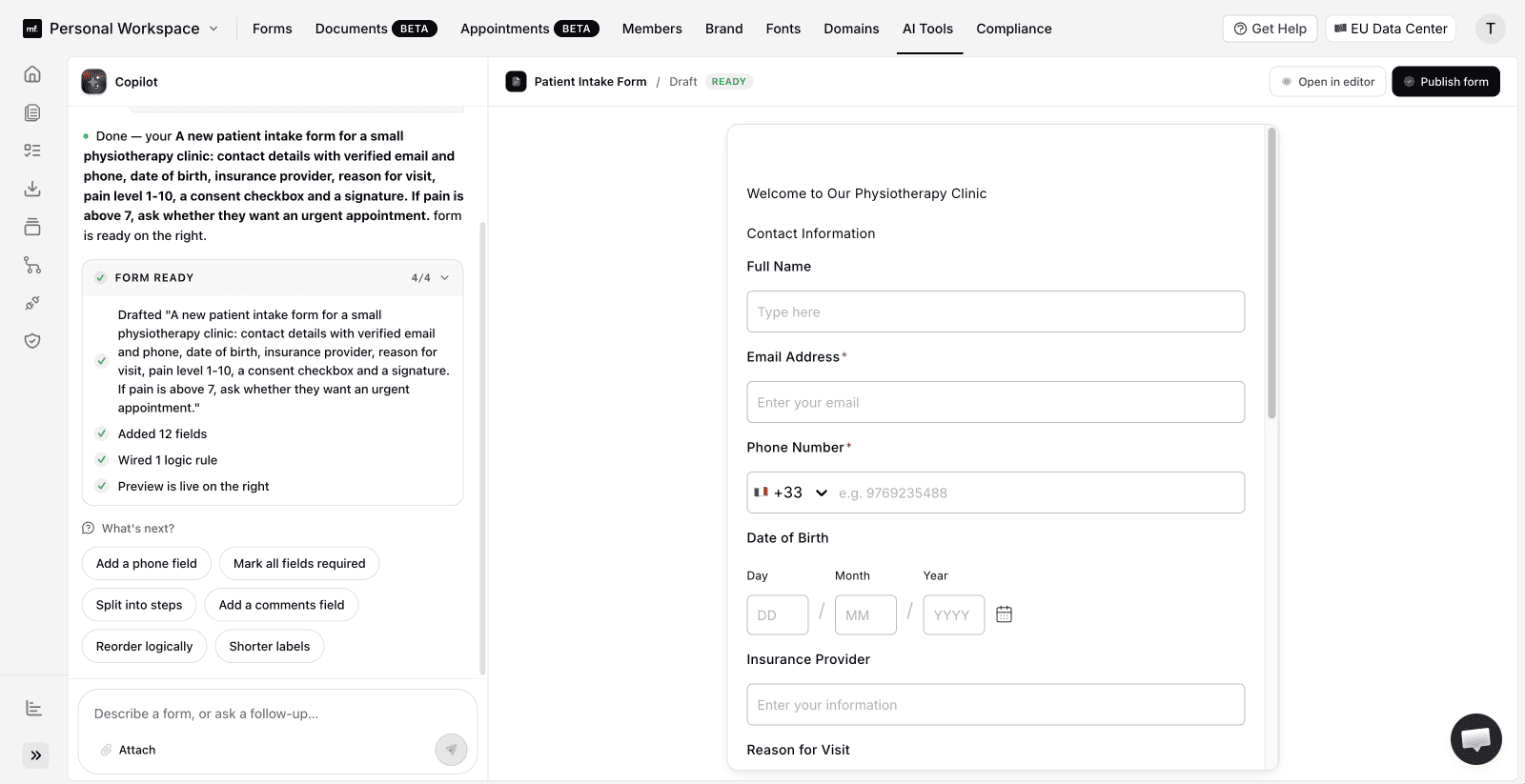
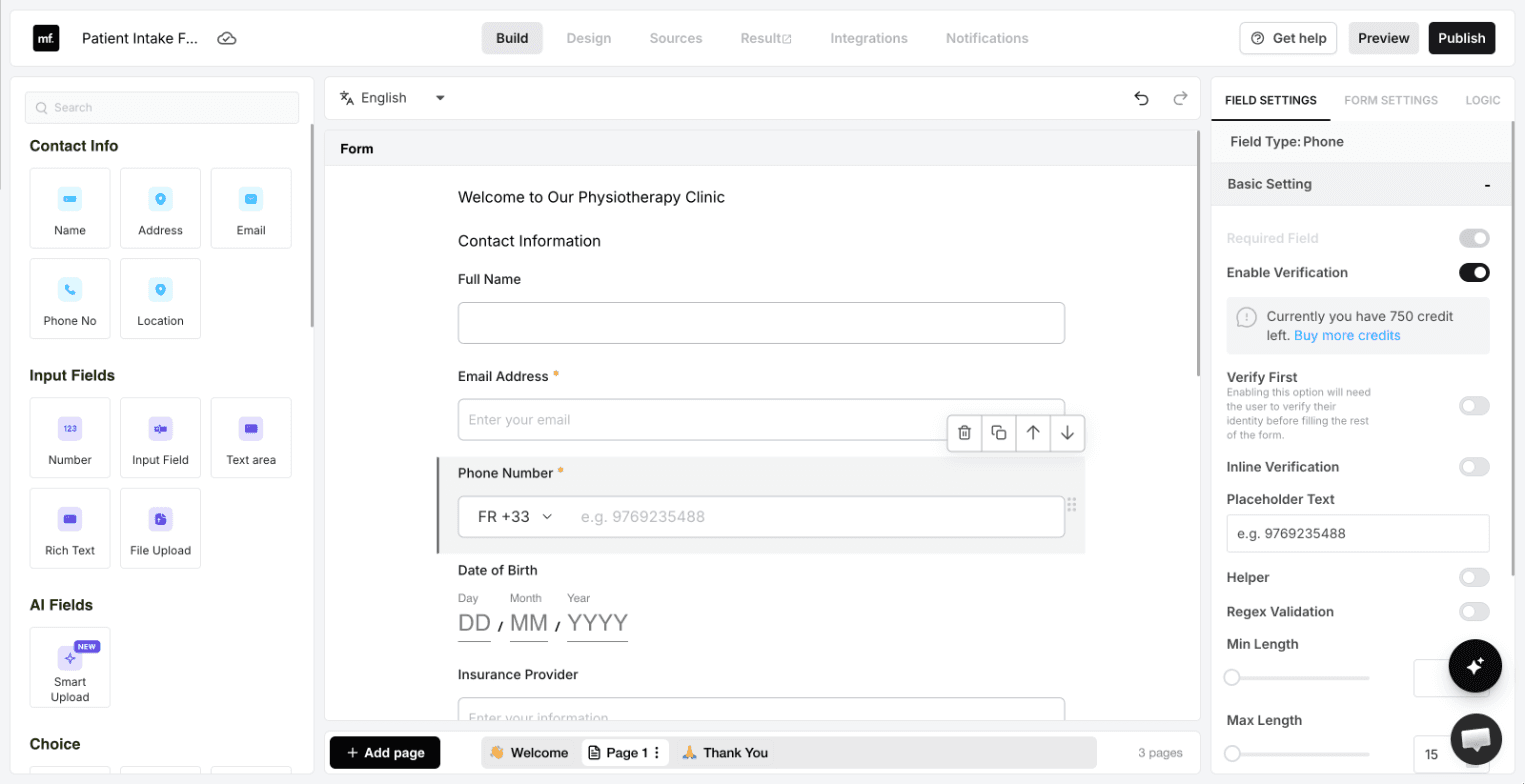
To test the AI, I gave it a realistic brief: a new patient intake form for a physiotherapy clinic, with verified email and phone, date of birth, insurance provider, reason for visit, a pain level from 1 to 10, a consent checkbox and a signature, plus a follow-up question when pain goes above 7. A few seconds later the panel reported "Added 12 fields" and "Wired 1 logic rule", and the preview was on the right. The logic was exactly what I asked for: if "Current Pain Level" is greater than 7, show "Would you like an urgent appointment?". The phone field even came pre-set to +33 because I'm in France (that's the IP lookup I come back to in the compliance section).
It wasn't perfect. The Copilot didn't switch on verification for the email and phone even though the prompt asked for it, and the consent "checkbox" came out as an "I accept / I don't accept" radio pair. Both took a few seconds to fix in the editor, but it's a reminder to review what the AI builds rather than publish it blind.
The editor itself is a classic three-column builder: field library on the left (contact fields, choices, ratings, NPS, a matrix, a repeater group, an API action, an OpenAI field, and a Compliance group with Legal Consent, GDPR Agreement and TCPA Consent), the canvas in the middle, and field settings, form settings and logic on the right. It's dense, but nothing is hidden.
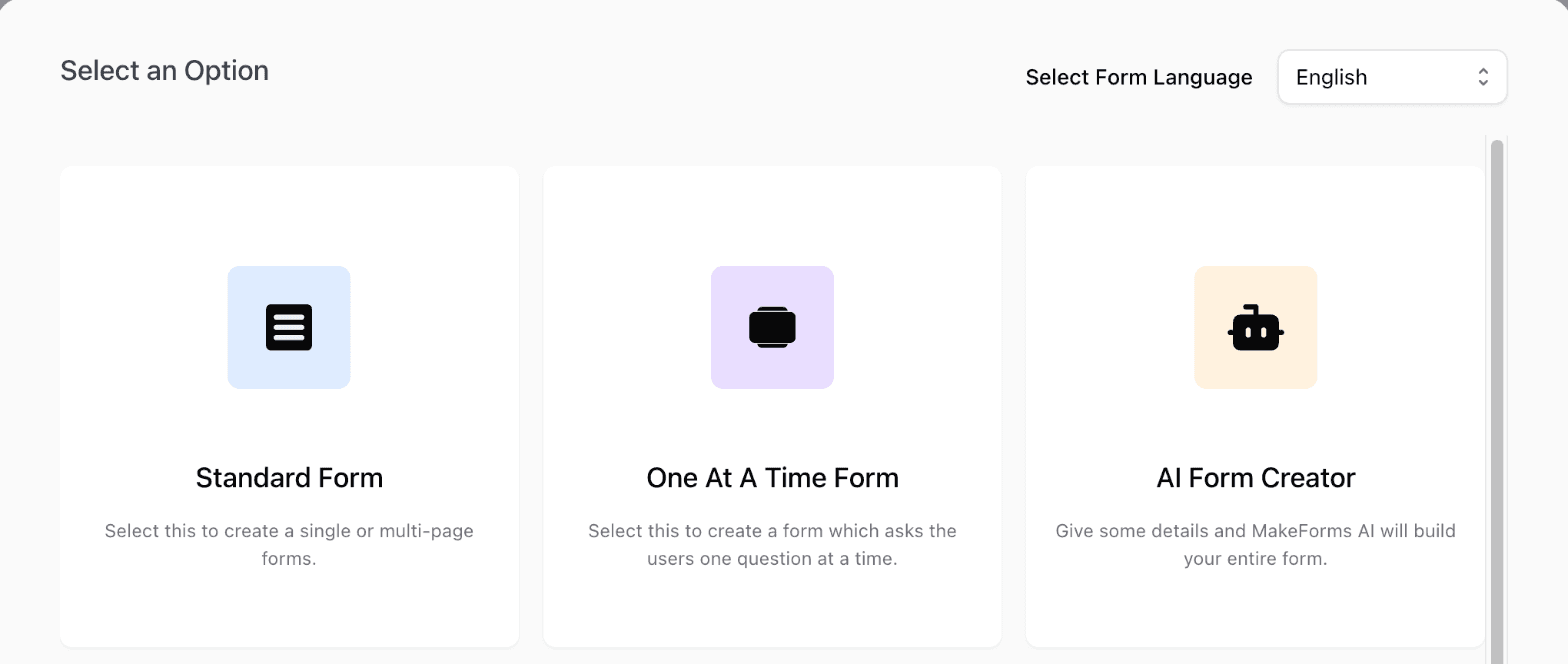
This is the feature the team is proudest of, and it's a real differentiator. When you create a form, MakeForms asks you to pick a format: "Standard Form" for single or multi-page layouts (the Jotform style), or "One At A Time Form", which asks respondents a single question per screen (the Typeform style). Most builders pick a camp. MakeForms lets you use both from the same account, with the same fields, logic and integrations.
I built a short beta feedback survey in the one-at-a-time format and published it. The experience is what you'd expect from a Typeform alternative: big type, an "OK" button with "press Enter", keyboard navigation and a progress bar across the top. Answer piping works too: I typed "@" in the second question's title, picked the name field, and on the live form the question read "Nice to meet you Thomas".
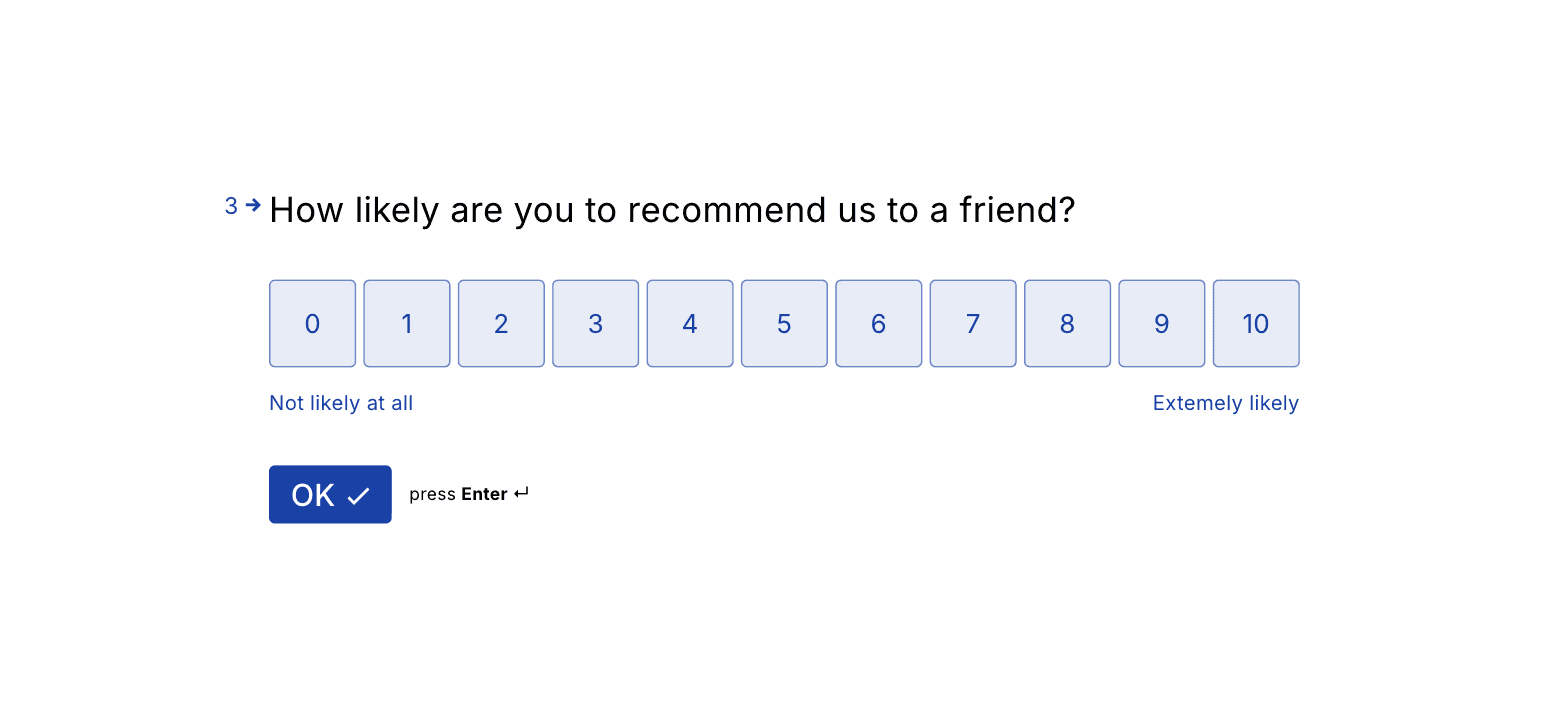
Two small things to know. The format is chosen when the form is created, and I didn't find a way to convert a standard form into a one-at-a-time one afterwards, so pick carefully. And when I asked the in-editor Copilot to add four questions to that survey, it created four fields with no question text and used a 1 to 10 rating where I'd asked for an NPS, so I rebuilt them by hand. The default NPS labels also carry a typo ("Extemely likely") that you'll want to edit.
Fake leads and mistyped emails are the quiet tax on every form. In MakeForms, fixing it is a toggle: select an email or phone field and switch on "Enable Verification". The field becomes required automatically, and you get two extra options: "Verify First", which makes respondents verify before they can fill in the rest of the form, and, for phone numbers, "Inline Verification". There's no SMS provider to connect and no template to write.
Email verification is unlimited on every plan. Phone verification runs on credits, and the settings panel tells you where you stand: my account showed "Currently you have 750 credit left" with a link to buy more.
On the published survey, pressing Submit opened an "Email OTP Verification" window with six boxes and a "Resend OTP" countdown. It's clean and it doesn't feel like a captcha.
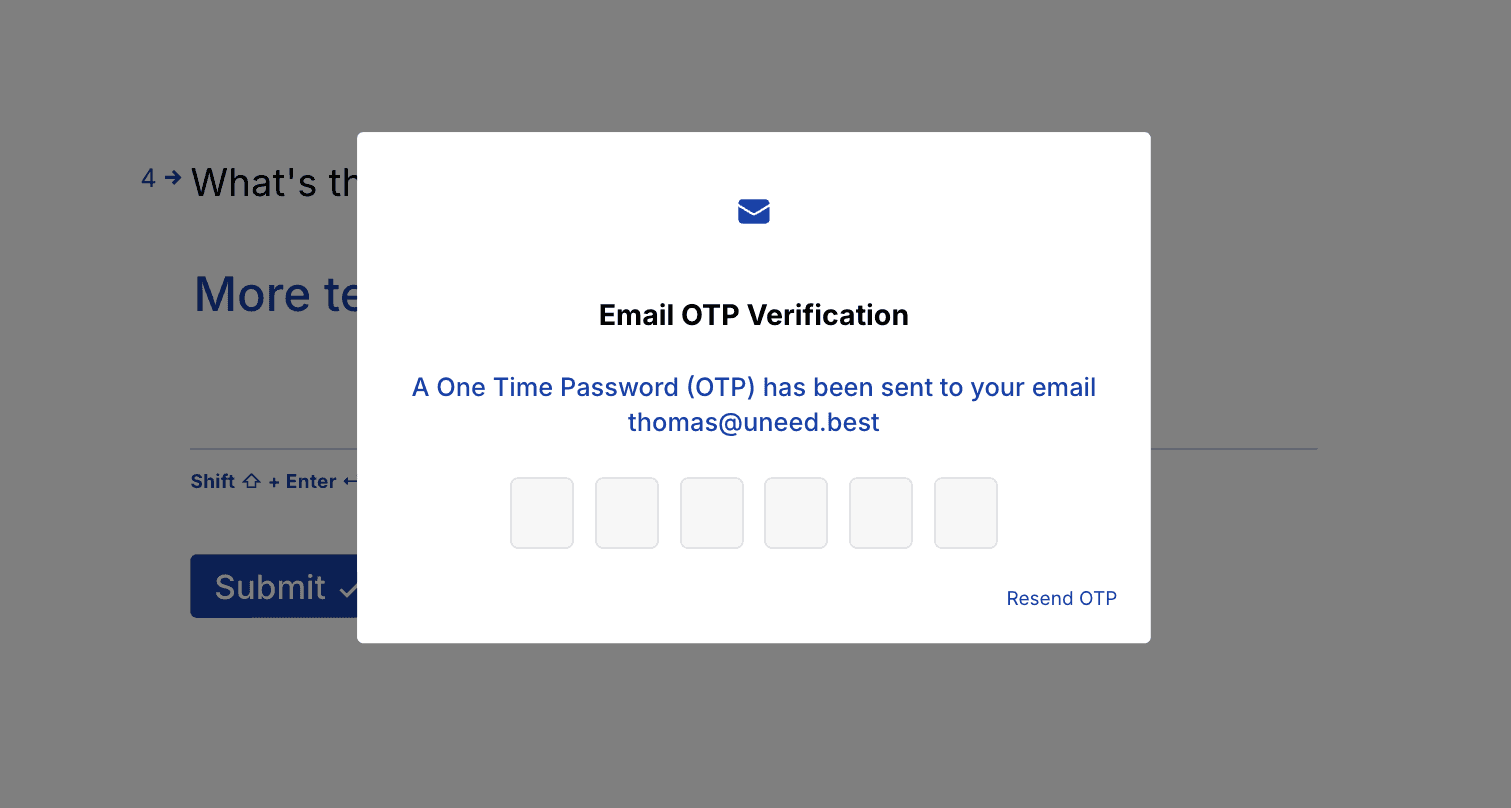
One thing to know, though. On that first test I closed the OTP window without entering the code, and the response was still saved: it sits in my results table with every answer, next to the verified one I sent a few minutes later, and it counts in the account's response total. There's no status column or badge to tell the two apart. If you rely on verification to filter out fake leads, check how unverified entries reach your integrations before you go live.
This is where MakeForms differs from most form builders. Each workspace belongs to a data region, chosen when you create it. The "Create a new workspace" window shows six regions (EU, US, Canada, Singapore, India, Australia) and lists the compliance frameworks each one covers: GDPR in the EU, HIPAA in the US, PIPEDA in Canada, the Australian DPA in Australia, and SOC 2 plus ISO 27001 everywhere. Enterprise customers get additional regions on request.
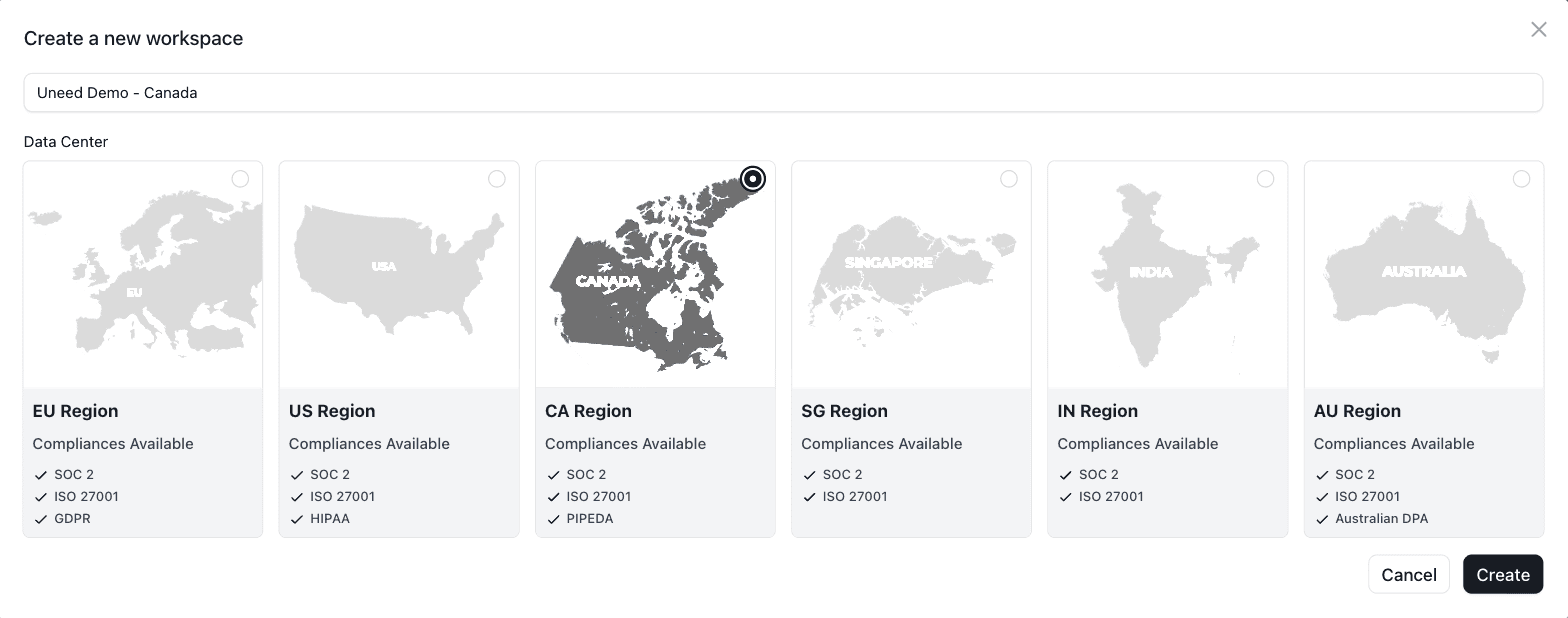
I created a US workspace next to my EU one and switched between them. The badge in the top bar went from "EU Data Center" to "US Data Center", and in the browser's network activity each workspace talked to its own regional API host. Published forms carry the region in their URL as well. Launch has no extra workspaces, but its pricing card lists the same six regions, so a Launch account still picks where its one workspace lives (the US, for a clinic that needs HIPAA). For anyone who has to answer "where is our data stored?" in a security questionnaire, having the answer in the interface is useful.
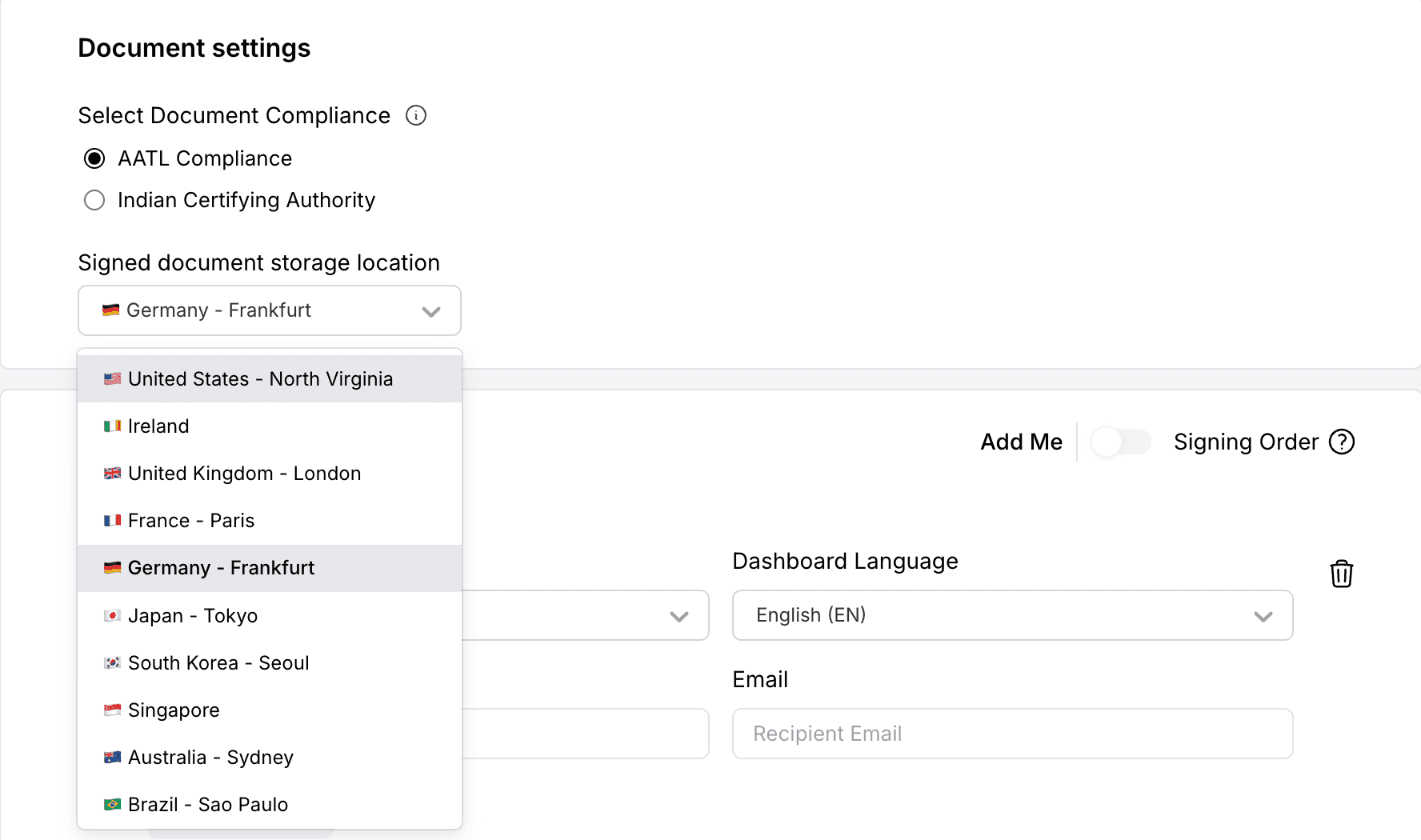
The e-signature module goes further: every document you send has its own "Signed document storage location" dropdown, and I counted 23 locations, from Frankfurt and Paris to Zurich, Tokyo and Tel Aviv.
The Documents tab (marked Beta) is a signing tool in its own right. You upload a PDF or Word file (or pull one from Dropbox, Google Drive or Box), then choose a compliance standard (AATL, or the Indian Certifying Authority) and a storage location. Each recipient gets a role ("Needs to Sign", "In Person Signer", "Document Reviewer" or "Document Editor") and per-signer settings: extra authentication, a private message, selfie verification, knowledge-based authentication and even a payment to collect. Documents expire after 60 days by default, with a reminder the day before.
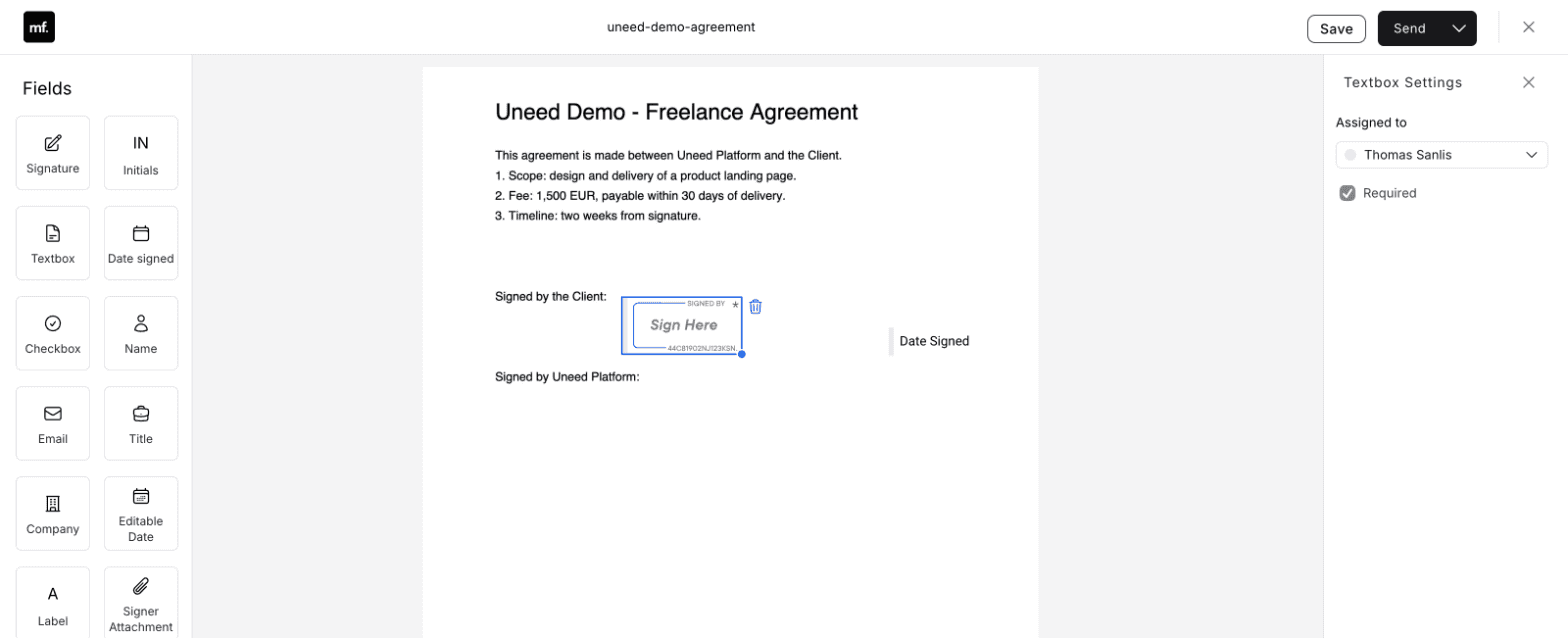
I uploaded a one-page freelance agreement and dragged a Signature field and a Date Signed field onto it. The field palette is what you'd expect from a dedicated signing tool: Signature, Initials, Date signed, Name, Email, Title, Company, Checkbox, Signer Attachment, Drawing. Send can be scheduled, too. The first time I opened the editor it hung on "Loading the document...", and a page refresh fixed it.
Is it "DocuSign-level"? I can't assess the legal side of that claim and didn't compare audit trails, but on features for the everyday "send a contract, get it signed" workflow, it has more options than I expected from a form builder's side module.
Document generation lives in a form's Integrations tab, under "Document Generator". You either upload an existing PDF or start a blank document from scratch, then place text boxes on it and connect each one to a form field. I uploaded a one-page "Beta Feedback Certificate", mapped the respondent's name, NPS score and suggested improvement to three boxes, and saved. The editor previews each box with sample data ("John Doe", "4", placeholder text) so you can check alignment and font size.

After the next submission, a "Generated Pdf" column appeared in the results table with the file attached to that response. A "MakeForms Sign" integration sits right next to it and sends generated documents out for signature, which is how you'd chain a form, a contract and a signature into one flow. One detail: long answers are shrunk to fit the box you drew rather than wrapping, so size your boxes generously.
Appointments (also in Beta) is a booking tool with a six-step setup: name and username, calendar connection (Google, Outlook, Apple or MakeForms' own calendar), meeting locations (Google Meet, Microsoft Teams, phone, in person, physical address or a custom link), weekly availability, an optional custom domain, and your first event type. I used the built-in calendar, a phone call location and 30-minute slots, and had a public booking page in about two minutes.

It covers the basics well: time zone selector, 12 or 24-hour display, "Awaiting Approval" bookings, webhooks and email notifications. Zoom is still labelled "Coming Soon", which will matter to a lot of teams. There's also an Appointments field in the form builder, so a booking can be part of a larger form.
The Compliance tab lists what MakeForms says it holds, each with a "Download Certificate" link: SOC 2 Type II, ISO 27001, ISO 27701, GDPR, PIPEDA and CCPA are marked "Active". HIPAA shows a "Request BAA" link instead, which makes sense since a Business Associate Agreement has to be signed before you collect health data, and the Australian card points to support. Pricing marks all three plans as HIPAA compliant.

These are MakeForms' own claims, and I didn't audit the certificates. What I can say is that the controls you'd expect from a HIPAA form builder are there: fields can be marked as sensitive and hidden from teammates without permission, forms can be password-protected, submissions can be auto-deleted, captcha is automatic, and a "MakeForms Support Team" access toggle is off by default. One small copy slip on that page: the ISO 27701 card repeats the ISO 27001 description.
Something worth knowing if your privacy review is strict: the public form I published loaded Meta's pixel script (with no pixel configured and no events sent in my test) and called a third-party IP lookup service, which I assume is what pre-filled +33 on the phone field in the Copilot test. Neither is unusual on the web, but they're the kind of third parties a careful DPO will ask about.
Scale includes two extra workspaces, each with its own region, members, forms and brand. Inviting a teammate opens a permissions panel with around fifteen areas (Forms, Submissions, Workspaces, Integrations, Sensitive Data, Documents, Templates and more), and inside each one, separate rights such as View, Manage, Delete, Export or Publish / Send. New members start with view access, and "Create and Manage own form" lets someone build without touching everyone else's work.

It's the kind of granularity agencies and clinics with several locations ask for. You'll need to verify your own account email before you can invite anyone (or publish a form, for that matter), which caught me out the first time.
Beyond the team's list, a few things stood out while I clicked around:
MakeForms has two self-serve plans and an Enterprise tier, all marked HIPAA compliant, with a free trial. Paying yearly lowers the price by about 17% (the pricing page rounds it to 20%). Prices are in US dollars per month.
| Plan | Monthly | Yearly (per month) | Seats | Forms | Workspaces | Agreements / month |
|---|---|---|---|---|---|---|
| Launch | $79 | $65 | 3 | 30 | Personal only | 500 |
| Scale | $159 | $133 | 10 | Unlimited | 2 extra | 1,000 |
| Enterprise | Custom | Custom | Custom | Unlimited | Custom | Custom |
Submissions and form views are unlimited on every plan, which is the headline difference with builders that bill per response. Scale adds analytics, custom SMTP, Salesforce, team bookings, advanced permissions, removal of MakeForms branding and 50 GB of storage. Enterprise adds SSO, extra data regions, invoice billing, a custom SLA and a dedicated account manager. Phone verification, SMS and WhatsApp notifications run on credits across all plans.

The value comparison depends on what you're replacing. If MakeForms only replaces a form builder, it isn't cheap. If it replaces a form builder, a signing tool and a scheduling tool for a small team, the maths changes quickly.
If you only need a quick survey or a waitlist form, MakeForms is more than you need, and the paid-only pricing will feel steep next to free builders. And if your scheduling depends on Zoom, wait until that integration ships.
MakeForms is broader than its name suggests. The form builder is solid and offers both the Typeform-style and Jotform-style formats, the OTP toggle takes a common problem off your plate, and choosing a data region per workspace is useful in practice, not just a line on the pricing page. The e-signature and scheduling modules are still labelled Beta, but they did the job in my tests, and chaining a form to a generated PDF and a signature request is a workflow most competitors make you assemble yourself.
The rough edges are mostly polish: a Copilot that needs double-checking, a few typos in default labels, a document editor that needed a refresh. One thing to check before going live: responses whose OTP was never entered are still saved, with no flag.
What I liked:
Things to keep in mind:
If you're juggling a form builder, a signing tool and a booking link for sensitive data, MakeForms is worth a trial.
Reviewed product
HIPAA-ready forms, e-signatures and scheduling in one account.
Category
BusinessPricing
Paid